Category: utility prompts

  • The Memory Keeper: Turn a Family Recording into a Searchable Archive

    The Memory Keeper: Turn a Family Recording into a Searchable Archive

    There is an old family video on your computer, or a recording of a relative telling a story. You would like to read what was said and find the important moments again without replaying the whole thing.

    This prompt turns that recording into a transcript and a short description you can keep beside it. October 27, World Day for Audiovisual Heritage, is a good occasion to start with one.

    Start with the file you already have

    For example, open Gemini, choose Add files → Upload Files, and select your audio recording or video. Once it is attached, paste the prompt below. You can use another assistant, including ChatGPT, if it supports transcribing the file you upload.

    For a walkthrough, see how to upload an audio or video file and get a transcript. You do not need to type the spoken words yourself.

    The prompt

    Help me preserve this family recording.
    
    First, transcribe the spoken words in the attached audio or video file. Keep the original language and wording. Mark anything you cannot hear clearly as [unclear]. Use neutral speaker labels when you can distinguish the voices. Do not guess names or missing words.
    
    Show me the transcript and wait for me to check it.
    
    After I confirm it, add a short description with:
    - a clear title;
    - a summary of no more than 100 words;
    - people, places, and dates actually mentioned;
    - five keywords that will help me find it later;
    - any unanswered questions worth asking my family.
    
    Keep uncertain memories uncertain. Distinguish the date of the recording from dates mentioned in the story.
    
    Return the checked transcript and the description as two clearly labelled sections I can copy into a document. If you cannot read the attached recording, tell me.

    Check the memories, then save them

    Listen again where the transcript is uncertain. Correct a misheard name, but keep phrases such as “after the winter, I think.” The aim is to preserve what someone said, including the uncertainty, rather than turn it into a more definite story.

    Copy the finished transcript and description into Word, Google Docs, or another document. A name such as Grandma’s first job — transcript and notes makes the result easy to recognize. Download the document if you want to keep a local copy.

    Where your family archive lives

    Create a folder called Family Recordings on your computer or in a cloud drive you use. Make a subfolder called Grandma’s first job and put two things inside: the original recording and your new document. That is your first archive entry. Repeat for the next recording.

    The assistant’s answer stays in the chat until you copy or download it; you choose where the saved files go. Give folders descriptive names, keep a second copy elsewhere, and decide who can access a shared folder. A useful family archive can begin with just one recording and one readable document.

  • The Brain Dump Prompt: Turn Messy Notes into Three Clear Next Steps

    The Brain Dump Prompt: Turn Messy Notes into Three Clear Next Steps

    Your notes contain a reply you owe someone, an idea for next month, a half-finished task, and a reminder you have copied three times. Before you can get started, you have to work out what actually needs doing.

    This prompt turns that jumble into up to three clear next steps, with the remaining items kept in a short list for later. It is a useful way to begin a week or restart a day that has become scattered.

    Start with the notes you already have

    Open a new chat in your AI assistant. Copy in your rough notes from your phone, a document, or a few lines you type on the spot. Leave them messy. Add your main goal and the time you have available, then send the prompt below.

    The prompt

    Turn these messy notes into a manageable action list.
    
    My main goal: [GOAL]
    Time available today: [TIME]
    My notes: [PASTE YOUR NOTES]
    
    Separate tasks, ideas, and unanswered questions. Combine duplicates without losing important details.
    
    Suggest up to three next actions that fit my goal and available time. Make each action specific enough that I know how to start. Briefly explain why you chose it.
    
    Keep everything else in a short “Later” list. Do not invent deadlines or treat every idea as a commitment. Flag missing information instead of guessing.

    What a useful answer looks like

    Imagine your goal is to prepare Friday’s newsletter and you have thirty minutes today. Your notes mention a missing quote from Maya, an unfinished opening, a registration link to check, a possible podcast, and a website redesign.

    An illustrative shortlist might be:

    1. Ask Maya for the missing quote. This starts a task that depends on someone else.
    2. Draft the newsletter’s opening paragraph. You can make progress while waiting.
    3. Open the registration link and check where it leads. This resolves one concrete uncertainty.

    The podcast and redesign belong on the “Later” list unless you decide otherwise. That distinction matters: writing down an idea should not automatically turn it into another obligation.

    Take the list out of the chat

    Check the suggestions against your real commitments. The assistant cannot know an unmentioned deadline or how long a particular task takes you. If an action is too large, ask: “Reduce this to a first step I can finish in ten minutes.”

    Copy the actions you accept into your usual notes or task app and put the “Later” items underneath or on a separate page. The result initially exists only in the chat; copying it makes it part of the list you actually use. Start with the first action, and revisit the rest when your time or priorities change.

  • The Self-Correction Prompt Loop: Catching Handwriting Transcription Errors a Single Pass Misses

    The Self-Correction Prompt Loop: Catching Handwriting Transcription Errors a Single Pass Misses

    A first-pass transcription is rarely the best the model can do. It reads the page once, commits to its best guess for every word, and hands you the result — including the words it half-saw and quietly resolved in the wrong direction. The fix isn’t a better model or a cleverer single prompt. It’s a second look: feed the draft back to the model alongside the same image and ask it to check its own work.

    This “read-then-correct” loop reliably catches a share of errors that one pass leaves behind, and the technique generalizes well beyond handwriting. This guide is a deep-dive companion to the complete guide to transcribing handwritten scans; it assumes you already have a first-pass transcription in hand.

    (more…)
  • Transcribing Historical Handwriting with AI: Kurrent, Sütterlin, and Old Cursive

    Transcribing Historical Handwriting with AI: Kurrent, Sütterlin, and Old Cursive

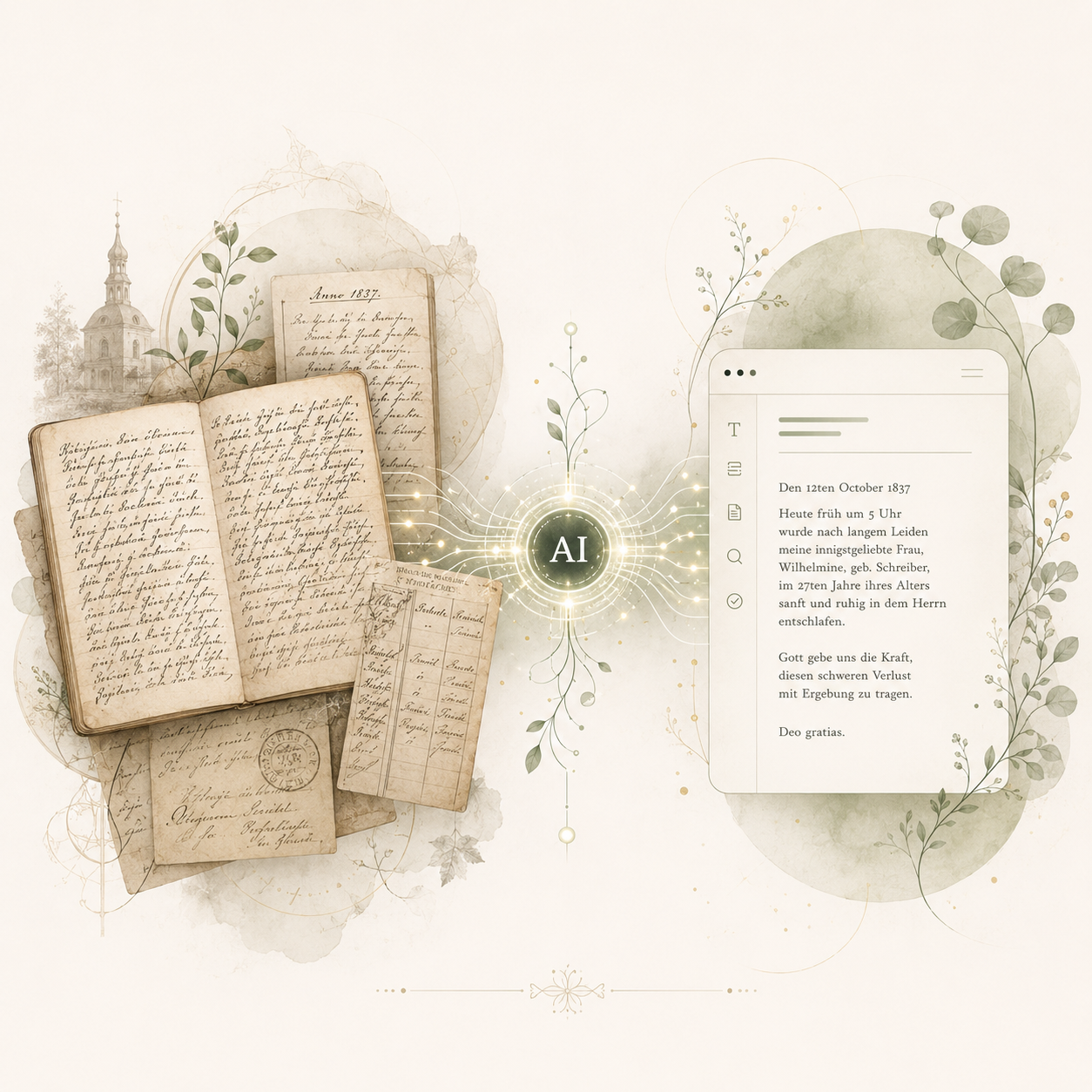
    Anyone who has pulled a 19th-century parish record, a soldier’s field letter, or a great-grandmother’s diary out of an archive knows the feeling: the page is right there, but it might as well be in code. Old scripts don’t just have messy handwriting — they follow conventions that no longer exist. Letterforms have changed, words are abbreviated in ways nobody uses anymore, and even the spelling belongs to another era.

    This is where general AI transcription gets genuinely hard, and where it pays to prompt deliberately. This guide focuses on historical hands — German Kurrent and Sütterlin, old English secretary and copperplate, and the archaic conventions that come with them. It’s a deep-dive companion to the complete guide to transcribing handwritten scans; the scan-quality and workflow basics there apply here too.

    (more…)
  • Handwritten Forms to JSON with AI: From Scan to Structured Data

    Handwritten Forms to JSON with AI: From Scan to Structured Data

    Forms are a different problem from letters or diaries. With a letter, you want the words. With a form, you want the data — name, date, amount, checkbox state — in a shape your software can read. Transcribing a form to a wall of prose and then re-parsing it by hand defeats the point. The better move is to have the AI return structured data directly, in a format you can drop straight into a database, spreadsheet, or pipeline.

    This guide is about doing exactly that with prompts: reading completed handwritten forms and getting clean, validated JSON back. It’s a deep-dive companion to the complete guide to transcribing handwritten scans if you haven’t set up your scan quality and basic workflow yet, start there.

    (more…)
  • How to Transcribe Handwritten Scans with AI: Prompts, Workflow, and Pitfalls

    How to Transcribe Handwritten Scans with AI: Prompts, Workflow, and Pitfalls

    Old diaries, letters from grandparents, research notes, filled-in forms, recipe cards, meeting minutes from the pre-digital era — a huge amount of information still exists only as a handwritten original. Multimodal AI models can now turn those scans into clean, searchable text in minutes. But the difference between a usable result and a confident mess almost always comes down to one thing: the prompt.

    This is the complete reference. It covers why handwriting is a special case, the workflow around the transcription itself, a base prompt you’ll adapt for most jobs, ready-to-use variants for the common scenarios, and the limits you can’t prompt your way past. Where a topic deserves a full treatment of its own, you’ll find a link to a dedicated deep-dive.

    (more…)
  • From Voice to Text: Create a Usable Transcript with ChatGPT and other LLMs

    From Voice to Text: Create a Usable Transcript with ChatGPT and other LLMs

    You have an interview on your phone, an old family video, or a voice memo you want as text. An AI assistant can turn the spoken words into a transcript. You upload the existing file and ask it to write down what is said.

    Upload your recording

    Here is a straightforward example using Gemini, which supports both audio and video uploads:

    1. Open Gemini and sign in.
    2. Choose Add files → Upload Files beside the message box.
    3. Select the recording already saved on your device and wait for it to attach.
    4. Paste the prompt below and send it.

    Start with a short clip. For a video, use the video file itself; the prompt asks for its spoken words. Google’s upload guide explains the current file and length limits. If your recording is too long, try a shorter section first.

    You can also use this prompt in ChatGPT or another assistant when it supports transcription of your uploaded file. If your current chat cannot read the recording, use the Gemini steps above.

    The prompt

    Please transcribe all spoken words in the attached audio or video file.
    
    Keep the original language and wording. Add punctuation and paragraphs so the text is easy to read. Do not summarize or translate it.
    
    Use Speaker 1, Speaker 2, and so on when you can distinguish different voices. Write [unclear] wherever you cannot make out a word instead of guessing. Preserve corrections such as "1982—no, 1983."
    
    For a video, transcribe the speech without adding descriptions of the pictures.
    
    Return the transcript, followed by a short list of passages I should listen to again. If you cannot access the recording, tell me instead of inventing its contents.

    Check it and save it

    The result appears in the chat. Play back a few passages while reading along, especially names, dates, numbers, and anything marked [unclear]. Check the beginning and end too: a fluent answer is not proof that the whole recording was covered.

    Make your corrections, then copy the text into Word, Google Docs, or a plain text file. Give it the same name as the recording, such as grandmas-first-job-transcript.docx, and save it beside the original. If the assistant offers a downloadable document, download that instead.

    Keep the audio or video as well: the transcript captures words, while the recording preserves the voice. Upload recordings only when you have permission to share them with the service. For a family collection, The Memory Keeper adds a short description that helps you find each recording again.

  • The Teach-Back Tutor: Find What You Don’t Understand Yet

    The Teach-Back Tutor: Find What You Don’t Understand Yet

    A page can feel familiar while the idea remains difficult to explain. The teach-back tutor starts with your explanation, then uses a focused question to find the place where your understanding becomes uncertain.

    Give the AI a trusted source and make your own attempt before asking for help. The point is to practise retrieving and connecting ideas, rather than read another fluent explanation immediately.

    The prompt

    Be my teach-back tutor for [TOPIC].
    Use these learning materials as the reference:
    [PASTE OR ATTACH THE RELEVANT MATERIAL]
    
    First, ask me to explain the topic in my own words without looking at my notes. Wait for my explanation; do not give a model answer first.
    
    Compare my explanation with the supplied material. Briefly identify something I explained accurately, then ask one question about the most important gap, ambiguity, or misconception. Do not reveal the answer yet.
    
    After I respond, give concise feedback tied to a specific passage or section of the material. If I am stuck, offer one hint before the full explanation. Do not invent references. Flag anything the material does not establish.
    
    Repeat for no more than three questions. Finish with two points to review and one new application question for a later practice session. Do not include its answer unless I ask.

    Make the first attempt yours

    Choose a small enough topic to explain in a minute or two: why seasons change, how a particular spreadsheet formula works, or the argument in one section of an essay. Uploading an entire textbook and asking to be tested on everything makes it harder to focus the session.

    Close your notes while you explain. Include what you are unsure about instead of quietly looking it up. A rough attempt gives the tutor something useful to respond to. Copying the source into your answer mostly tests whether the model can recognize its own input.

    For example, a learner might describe an argument accurately but leave out the evidence connecting two claims. A helpful follow-up would ask them to explain that connection. It should not replace their entire answer with a polished summary and call the exercise finished.

    Use feedback, then return later

    The approach draws on retrieval practice. MIT Open Learning describes how recalling knowledge, particularly with feedback, supports retention. That research supports the learning principle; it does not establish that this particular AI prompt has been tested or that every correction it gives will be accurate.

    Check disputed feedback against the supplied material. A missing detail may be important, optional, or simply outside the question you were answering. Ask the tutor to point to the relevant passage and explain why the omission matters. If the source itself is unclear, keep that uncertainty visible.

    Save the final application question for another day. Trying it later, before reopening your notes, gives you a different challenge from repeating an answer you just read. For a quick session, reduce the limit to one follow-up question. End with something specific to revisit, rather than a vague score for how well you understand the subject.

  • PDF Tasks with ChatGPT or Gemini: A Practical Alternative to Classic PDF Tools

    PDF Tasks with ChatGPT or Gemini: A Practical Alternative to Classic PDF Tools

    For a long time, even small PDF tasks felt more complicated than they needed to be.

    You wanted to merge two files, extract a few pages, rotate one scan, remove a blank page or create a clean version of a document — and suddenly you had to open Adobe Acrobat, use PDF24 or search for an online PDF tool.

    Those tools are still useful. Adobe Acrobat remains the professional standard for many advanced PDF workflows. PDF24 is a very practical option for quick everyday PDF jobs. But there is now another way to handle many standard PDF tasks:

    You can simply ask an AI assistant.

    (more…)